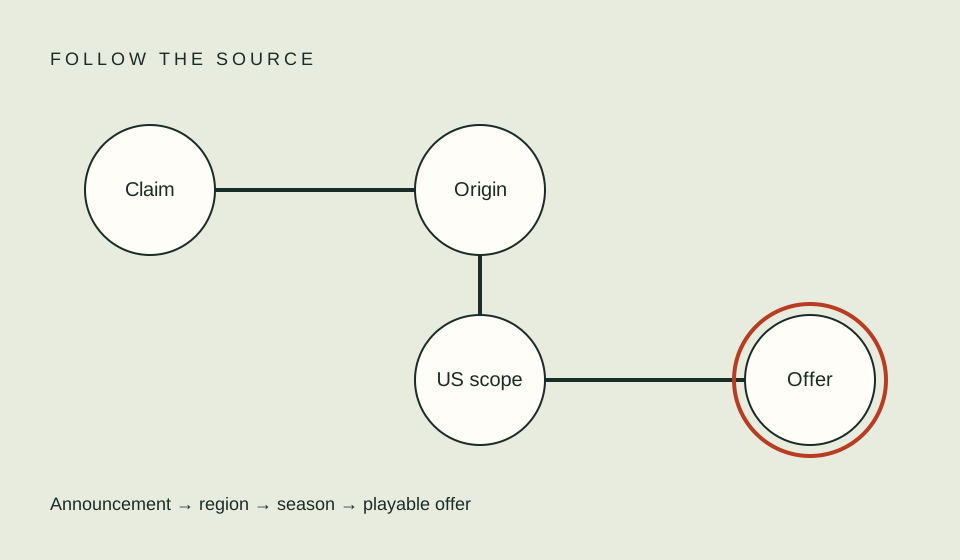
When a title you watched before disappears, record where and when you last saw it, then check the provider’s current listing and account context. A remembered poster, saved watchlist entry, or third-party “leaving soon” notice is not confirmation that the title is still playable today. It also does not explain why it is absent now.
Capture the prior and current evidence
Write down the exact title, year, season or edition, provider, account region, and the last date you successfully played it. If a watchlist or email contains a title URL, keep that as historical evidence. Then search the provider’s official US app while signed in and record the current result and any message shown.
Avoid sharing private account information in screenshots. Blur email addresses, profile names, payment methods, and personal recommendations before sending an image to support or posting publicly. A neutral note with date, title, device, and exact error is often sufficient to explain what changed.
| Evidence | How to interpret it |
|---|---|
| Old watchlist item | A prior save, not proof of current access |
| Third-party catalog page | A lead that may be stale or for another country |
| Official page with a current offer | Evidence of the offer shown in this account context |
| “Not available in your region” | A specific message to investigate through provider help |
| Search returns no result | A discovery result, not a complete catalog history |
Rule out a different title or profile
Confirm that the title’s year, language, cast, and version match. A remake, theatrical cut, special, or similarly named series may be a different listing. Compare the exact title and edition using the title-edition guide before treating two pages as the same item.
Check the profile you are using and whether parental controls or language preferences could affect what appears. Some services allow individual profile restrictions that hide particular titles. If you share an account, do not alter someone else’s settings without permission. Read the provider’s instructions and record any change before testing it.
Recheck the current offer and billing route
A title can remain visible while its included offer changes. It might now be a rental, a purchase, or an add-on rather than part of your base plan. It may also have disappeared from search entirely. Open the provider page and inspect the button or offer text; do not make a payment just to find out whether a remembered entitlement still applies.
If a third-party billing partner manages the subscription, check the account and receipts for that route. A plan label in one app may not match the billing account that controls access. The plan eligibility guide explains how to separate account status from title presence.
Provider terms describe that catalogs and offerings can change and vary by location. Prime Video’s terms, for example, explain geographic variation and state that purchased digital content may become unavailable in certain circumstances. That is provider-specific language and not a statement about the rights or history of every service. Read the terms that apply to the account where you made the transaction.
Distinguish removal from a technical failure
If the official page is present but playback fails, record the device and exact error before concluding the title was removed. Try a second supported device only if it is convenient and authorized. If the title is absent from search but a saved link opens, capture what the page says. A playback fault, region message, and missing search result call for different troubleshooting paths.
Do not reset a device or delete application data as the first response to a catalog question. Those steps can remove saved settings or downloads and may not change the provider’s current offer. Follow the official error-specific steps and make sure you can sign back in before any reset.
Ask support a precise question
If the issue concerns a recent transaction or a purchased item, contact the service through its official, secure support process. Include the title identifier, transaction date or reference requested by support, account region, device, and the exact current message. Ask whether the title should be available to the particular account or whether the issue is a playback error. Do not send passwords or full payment-card details.
Keep the case number and written response. If support confirms a catalog change, update your private watchlist with the new check date rather than continuing to rely on an older directory page. Screenlane does not maintain a live catalog, promise continuing availability, or handle provider disputes.
FAQ
Does a title disappearing prove it was removed from every service?
No. It describes your observed account and provider at a particular time. Check other legal options separately.
Should I pay for a rental because the subscription button disappeared?
Not before confirming the exact title and terms. A new payment is a separate decision, not a troubleshooting step.
Can an old purchase also become unavailable?
Some provider terms reserve limits on continuing access. Read the terms that applied to your transaction and ask the provider about your account.
Related guides
Sources
- Prime Video Terms of Use — geographic variability and access terms for Prime Video content.
- Netflix Help: find a missing title — provider-specific reasons to inspect account and title context.
- Netflix Help: profile restrictions — behavior of profile maturity and title restrictions.