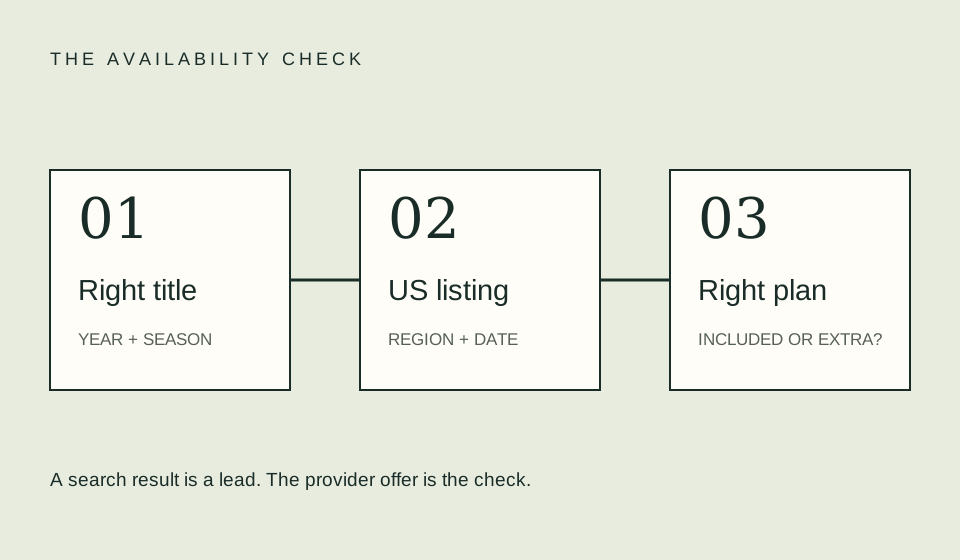
To check a season’s availability, open the official series page, select the season explicitly, and inspect the episodes you intend to watch. A series result can identify the right show without proving that every season is included in your account. Record the season and episode range instead of writing only the provider name.
Identify the season by more than a number
Use the episode titles, original release period, and story sequence to confirm the season you mean. A season number is a convenient label, but it is not always enough to distinguish a special, split installment, or alternate grouping. Do not silently equate a volume, part, cour, or collection with a complete season.
If your watchlist came from another country’s episode guide, compare the actual episode list with the US provider’s display. The goal is to match the content, not force one numbering convention onto another. Keep a note of the last episode you finished so you can identify the next installment without relying on memory.
Expand the official episode list
Choose the season selector rather than assuming the first displayed episodes are the newest or the ones you want. Inspect the beginning and end of the list. Look for a specific episode title or number that anchors the intended run. Check whether the displayed action is full playback, a trailer, a purchase, or a reminder.
If the provider reveals only a partial list before sign-in, do not infer the remaining episodes. Use an account you are authorized to access or ask official support. A sign-in requirement is not evidence either for or against availability. Preserve the difference between “not visible in this view” and “confirmed absent from this account.”
Check both ends of the viewing plan
Suppose you need episodes one through eight. Checking only episode one does not establish the whole range. Check the final episode as well, and inspect any breaks in between. For a weekly series, find the official schedule rather than assuming the list is complete because the season page exists.
An illustrative plan might have four available episodes and four expected later. A season planner that assumes all eight are ready will overstate what you can watch now. Enter only the available episodes for a current backlog estimate, then plan future releases separately. The example describes a planning method, not a real program’s schedule.
| What you see | Next step |
|---|---|
| Series page only | Open the season selector |
| Correct season, partial list | Check the episode schedule |
| Episode with a price | Inspect the separate purchase offer |
| Trailer or reminder | Do not record it as playable |
| Different episode numbers | Match titles and story order |
Keep purchase and subscription access separate
A service may expose an offer to buy an episode alongside other viewing routes. Read the exact action before selecting it. The presence of multiple seasons in a storefront is not proof that all are in the same subscription catalog. Compare the offer for each required season independently.
Use rent, buy, or subscribe if the run is divided across access types. An illustrative eight-episode season at $3 per episode totals $24 before other charges. Compare that with a valid whole-season offer only after confirming the same episode count and edition. These numbers are fictional arithmetic, not pricing guidance.
Avoid spoilers while checking
Use episode numbers, durations, and playback controls without reading plot summaries when possible. A friend can verify a later episode’s availability if you want to avoid its title or description. Do not let a spoiler-heavy recap become your only source for whether an episode has actually been released in the US.
For group viewing, circulate a short logistics note rather than a screenshot full of episode synopses. Include the season label used by the provider, the first episode to open, and the viewing route. That gives others enough information to prepare without distributing account credentials or revealing story developments.
Save a season-specific record
A useful note contains the provider URL, season label, available episode range, offer type, country context, and your own check date. If the title later moves or the season changes, you can see exactly what was established. Avoid claiming a permanent home for a season from one successful check.
If the list differs between two profiles or devices, do not immediately buy a missing episode. Compare the account, profile, app, and season selection first. Missing episodes provides a narrower troubleshooting sequence, while the main verification guide explains the full title-to-offer process.
FAQ
Does one playable episode prove the whole season is included?
No. Confirm the episode range you intend to watch and check any separate offers or future installments.
How should I handle split seasons?
Record the provider’s labels and actual episode titles. Check each part instead of assuming a single release date covers the entire run.
Can I use a fan episode guide to establish availability?
It may help identify story order, but verify US playback with the provider. Identification and entitlement are different questions.
Related guides
Sources
- Netflix Help Center — check title and episode support for the service you use.
- Paramount+ official browse — official catalog destination; signed-in context may be needed. No title availability is asserted here.