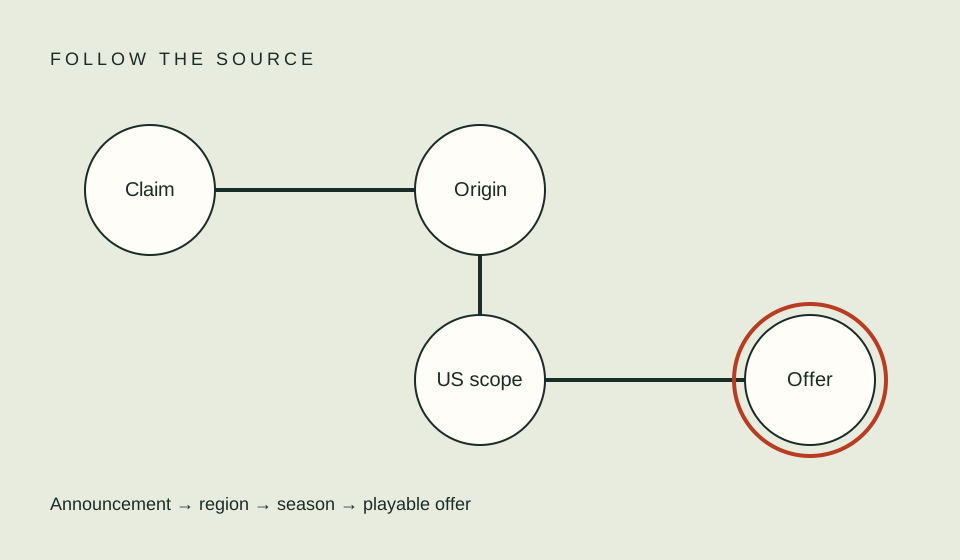
An explicit “unavailable in your region” message is different from an empty search. Keep the exact wording and provider context, then follow that service’s official help. Catalogs and offers can vary by location, and a provider may be unable to determine your current country. Do not infer the same cause from a generic missing title or try to bypass location rules.
Preserve the exact message
Copy the error text or code, the title URL, your actual location, the device, and the date and time it appeared. Avoid paraphrasing a provider message as “not streaming”; that erases the distinction between a regional restriction, a plan offer, and a playback fault. If you take a screenshot, remove account email, profile names, and payment details before sharing it.
Check whether the message appears on the title detail page, after pressing play, during a download, or while signed in. Those states can point to different official help articles. A friend’s screenshot from another location may be useful context, but it does not establish what your current account should receive.
Confirm the actual region and account context
Use the provider’s official US destination and verify that the correct account is signed in. If you are traveling or recently moved, read the provider’s travel and account-region instructions. If you have not moved, an IP-location or network-detection issue may be involved; the provider’s official support instructions are the right path to investigate it.
Do not change account country fields just to see another catalog. A country change can affect billing, payment methods, subscriptions, or access. Before making a legitimate account move, review the service’s current process and consequences. A title page that exists in another country does not establish a US entitlement or a way to transfer the offer.
| Message or observation | What it establishes | What it does not establish |
|---|---|---|
| Explicit current-region error | The provider displayed a region-related message | A permanent catalog decision |
| No result in search | That query returned no matching result | That the title is absent from every service |
| Friend sees a title abroad | A different account or location has a result | Your US plan includes the title |
| Title page opens | A page or listing exists | Playback entitlement is active |
| Playback error after selecting title | A playback attempt failed | The title is region-blocked |
Follow the provider’s official troubleshooting
Netflix’s help for a current-region error identifies cases where it cannot determine the viewer’s country and directs users to relevant account or network steps. It also has separate guidance for travel, VPN, and title availability. These are Netflix-specific instructions and should not be applied automatically to another platform.
Prime Video’s terms describe geographic variation in content and offers and say that the service uses location verification. Again, that statement explains the provider’s own terms; it does not diagnose a message from another service. Open the official help linked from the affected app or account and follow the exact steps for the error you saw.
If you use a VPN or proxy for a legitimate privacy or business reason, consult the provider’s current compatibility guidance. This article does not advise using a VPN to access a catalog that is not offered in your region, nor does it explain techniques for avoiding geographic controls. If the provider asks you to disable a network setting for troubleshooting, decide whether that is appropriate for your setup and follow its official instructions.
Keep account changes reversible and documented
Before signing out, confirm that you know how to authenticate again. Before changing profile language, region, or parental settings, note the original value and understand what the setting affects. Change one item at a time only when the provider’s instructions call for it. If the display changes, record that result; if it does not, restore the original setting where appropriate.
Avoid clearing application data or resetting a device as an initial step. These actions can remove downloads, settings, or saved sessions and may not resolve a region issue. Begin with the least disruptive official troubleshooting. If a step could erase local data or affect the account, review the provider’s warning and make sure you can recover the information you need.
Decide whether the result is availability or playback
If the title is absent before you select it, use the missing-title checklist to separate search context from entitlement. If the title page is visible but the playback control fails, collect the error and device details for playback troubleshooting. If one episode is absent while others appear, compare season numbering using the missing-episode guide.
Only the provider can confirm a current account-specific catalog result. Screenlane does not query catalogs, inspect your location, or contact a provider for you. Treat third-party directories as leads and the official signed-in page as the place to verify an offer.
FAQ
Does a region error mean a title is permanently unavailable?
No. It records a provider message at a particular time and account context. Follow the service’s current help and recheck if circumstances change.
Is an empty search the same as a region error?
No. Preserve the exact wording and the point in the app where it occurred.
Can I use a location-masking tool to test another country’s catalog?
This guide does not recommend bypassing regional controls. Use the provider’s official travel, region, and support instructions.
Related guides
Sources
- Netflix Help: current-region error — Netflix-specific location-detection guidance.
- Netflix Help: unavailable titles — a separate region-specific title case.
- Prime Video Terms of Use — geographic variation and location verification in that service.