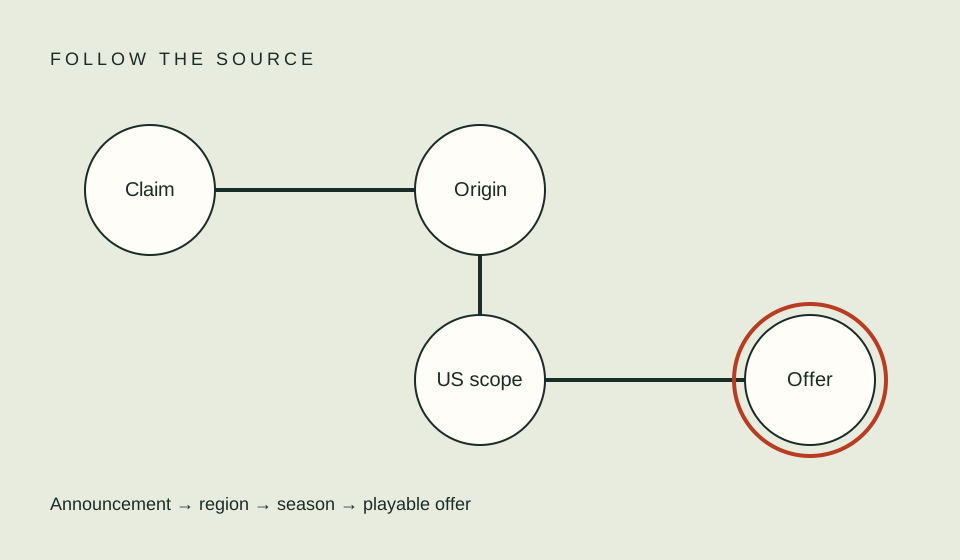
When one episode is missing, compare the provider’s season page with an official release announcement before treating it as a technical problem. Episode numbering, split seasons, specials, and staggered schedules can make the expected installment unclear. A series landing page does not prove every season or episode is available to your account.
Match the exact season and episode
Open the provider’s official US listing while signed in. Select the season you intend to watch and record the episode numbers and titles shown. Compare those names with the announcement or episode guide you used to form the expectation. Numbering can restart in a new part, include a special, or differ between services. A title match is more reliable than a number alone.
Check whether the missing item is a full episode, recap, trailer, bonus, or behind-the-scenes feature. A provider may list these under a different season heading or place them in an extras row. If the episode title is unknown, do not guess that the next number is the right one. Note the gap and search the official provider page for a distinctive phrase from the announcement.
| Evidence to compare | Why it helps |
|---|---|
| Provider season label | Establishes which group is selected |
| Episode number and title | Distinguishes numbering from identity |
| Official announced date | Shows whether the installment was promised |
| US title page | Confirms the relevant market and offer |
| Signed-in profile | Checks the account context you actually use |
| Device and app | Helps isolate display or playback differences |
Check whether the episode was actually scheduled
A premiere date can refer to one episode, a batch, or a special. Weekly patterns may include pauses or changes. A split season can have an announced second part without individual dates. Review the official source and preserve exactly what it says. Do not calculate a missing date by adding seven days unless the full schedule explicitly confirms that interval.
Keep a small schedule record with episode, date, clock time if provided, time zone, source link, and check date. Label each entry announced, available, or not confirmed. If the source gives only a date, avoid converting it to an exact hour. The weekly release guide explains how to keep gaps visible rather than filling them with a guess.
Check access before troubleshooting the device
If the provider page lists the episode, confirm that your current plan includes the offer. Some platforms separate included subscription titles from channel add-ons, rentals, purchases, or other payment routes. A page can show a title even when the episode is not covered by the plan you hold. Read the offer attached to that episode before paying or changing subscriptions.
Compare only the account and region that you are entitled to use. If another profile or device is available in your household and you have permission, inspect whether the same episode appears there. Do not share passwords or alter someone else’s parental controls just to run a test. If profile restrictions may matter, review the provider’s official instructions with the account owner.
Isolate a display issue from a missing release
If the episode is listed but a button does not load, record the exact message and whether the issue occurs on one device or several. Refreshing the app or using another supported device can show whether the problem is local to a screen. Keep the app version, device model, and time of the check. Avoid uninstalling or resetting a device before you preserve needed sign-in information and review the provider’s official troubleshooting steps.
When a tile appears but playback fails, the problem is not necessarily episode availability. It may be an account, network, device, or compatibility issue. Follow the provider’s error-specific guidance rather than assuming that catalog status changed. The playback error triage guide organizes a low-risk sequence for collecting evidence.
Contact support with a reproducible report
If the provider confirms an episode should be present but it remains absent, use the provider’s official support process. Give the title URL, season, episode name or number, your check time and region, account plan category, device, app version, and exact message. Provide account identifiers only through the secure channel requested by the provider. Do not send a password or payment card number in a public forum.
Ask a narrow question: “Is this episode currently available to this plan in the US, and should it appear on this device?” That is easier to investigate than a general claim that a series is missing. Save the case reference and answer. Screenlane does not receive provider account data and cannot confirm catalog status on your behalf.
FAQ
Does a season page prove that every episode is included?
No. Inspect the selected season, episode list, and offer shown for your account.
Should I report an episode as missing before its announced date?
Keep it labeled as upcoming unless the provider confirms another status. A future item is not an overdue episode.
Can reinstalling the app fix an episode that was never scheduled?
No. Establish the expected release and entitlement first; troubleshoot software only when the page or playback behavior points to a device issue.
Related guides
Sources
- Netflix Help: release timing — provider-specific release timing and exceptions.
- Netflix Help: missing titles — account and title context to inspect for Netflix.
- Prime Video: What can I watch? — distinguishes subscription inclusion from other offers.